Installing Unreal Tournament and finding online servers
Unreal Tournament (1999) is still actively maintained today by the community developers at OldUnreal,
who release regular updates for Unreal, UT99, and UT2004 to ensure they run properly on modern versions
of Windows.
If you are updating an existing installation: visit https://oldunreal.com
and download the latest UT99 patch. Run the installer and let it update your existing installation. These patches
include important compatibility fixes, modern rendering improvements, and restored online services.
If you don't have the game yet: the folks over at OldUnreal offer an official installer that includes a legal copy of the game with all current patches with all other modern improvements. Find the installer here:
https://www.oldunreal.com/downloads/unrealtournament/full-game-installers/
A key part of the update is the addition of modern renderer DLLs. A renderer DLL is simply a file that tells the
game how to communicate with your graphics card in order to draw the game’s visuals. Different renderer DLLs use
different graphics technologies. The available options typically include Direct3D10, Direct3D11, XOpenGL, and Direct3D9
(experimental). Direct3D11 is generally recommended for Windows 10 and Windows 11 systems. Direct3D10 can work well on
slightly older hardware. XOpenGL is very stable and widely compatible. Direct3D9 is labeled experimental and should only
be used if the others do not function correctly.
To select a renderer, you can do it from inside the game or manually through the configuration file. From within the game,
launch UT99, go to Options, open Preferences, expand the Video section, choose Render Device, select the renderer you want,
and then restart the game.
Alternatively, you can manually edit the file located at System\UnrealTournament.ini inside your
UT99 installation folder. In the [Engine.Engine] section, set the GameRenderDevice line to the renderer you want, such as
D3D11Drv.D3D11RenderDevice for Direct3D11 or OpenGLDrv.OpenGLRenderDevice for XOpenGL.
Save the file and launch the game.
One of the biggest improvements provided by the OldUnreal updates is the fully restored online server browser. It now connects
to active master servers and displays thousands of live servers. The browser includes a regularly maintained news page and
integrated live IRC chat, allowing players to communicate and stay informed directly from within the game. No special master
server configuration is required; everything works automatically after patching.
For best results on modern systems, select Direct3D11, set the resolution to match your desktop’s native resolution, enable high
detail textures and 32-bit color, and optionally enable VSync. If you encounter issues such as crashes or graphical glitches,
try switching to XOpenGL or another renderer. If the game fails to start or displays a black screen, deleting UnrealTournament.ini
will force the game to recreate it with default settings on the next launch.
With the latest patch installed, UT99 runs smoothly on current hardware, features a fully functional online browser, and continues
to support an active multiplayer community. Thanks to the continued work of OldUnreal, this classic arena shooter remains fully playable today.
Renderer DLLs for Unreal engine games
To use any of these DLL files, just put it in UnrealFolder\System and then while inside the game, visit the video options menu, and click Change Renderer. This will then restart the game at the renderer selection dialog. Once you launch the game, this renderer will be stored to be used for future sessions.
Direct3D 10 renderer by Kentie
Direct3D 11 renderer by darknovismc
An enhanced OpenGL renderer for Unreal Tournament
Updating master server configuation in Unreal series games
To manually add or change master servers in Unreal Tournament–based games,
you need to edit the appropriate configuration file located in the game’s
System folder. For Unreal Tournament (1999), open UnrealTournament.ini.
For Unreal (1998), edit Unreal.ini. For UT2004, modify UT2004.ini. These
files are typically found in ...\System\ inside your game directory.
First, close the game completely before editing. Open the correct .ini
file in a plain text editor such as Notepad. Search for a section named
[IpDrv.MasterServerLink]. If the section does not exist, you can create
it at the bottom of the file.
Inside this section you will see lines beginning with MasterServerAddress=
and MasterServerPort=. To point the game to a different master server,
replace the existing address with the hostname of the server you want
to use. For example:
MasterServerAddress=master.example.com
MasterServerPort=27900
Some versions may also include multiple entries such as MasterServerAddress[0]=,
MasterServerAddress[1]=, etc. If so, you can add additional servers by incrementing
the index number. In UT2004 specifically, you may also see entries under
[IpDrv.MasterServerLink] like MasterServerList= or MasterServerTimeout=. The important
value is the server hostname. Replace only the address portion and leave other settings
unchanged unless you know what they do.
After saving the file, start the game and refresh the server browser. If the master
server is reachable and functioning, your server list should populate normally.
Setting a widescreen resolution in Quake III Arena
Navigate to your Quake 3 installation folder, then open:
baseq3\q3config.cfg
(If you are using a mod, open the .cfg file inside that mod’s folder instead
of baseq3.)
Open q3config.cfg in a text editor such as Notepad.
Locate the resolution settings. If they do not exist, add them anywhere in the
file on their own lines:
seta r_customwidth "2560"
seta r_customheight "1440"
Change the numbers if you prefer a different resolution.
Set your field of view by adding or modifying this line:
seta cg_fov "105"
Save the file.
(Optional but recommended) Right-click the .cfg file, choose Properties,
and set it to Read-only so the game does not overwrite your changes.
Launch Quake 3. The game should now run at 1920x1080 with a FOV of 100.

Setting your master server configuration in Quake III Arena
To change the master servers in Quake 3, you must edit your q3config.cfg file manually.
Close Quake 3 completely.
Go to your Quake 3 folder, then open:
baseq3\q3config.cfg
(If you are using a mod, open the q3config.cfg inside that mod’s folder instead.)
Open q3config.cfg in a text editor.
Search for the master server lines. They look like this:
seta sv_master1 "master.quake3arena.com"
seta sv_master2 ""
seta sv_master3 ""
Replace the addresses with the master servers you want to use. Example:
seta sv_master1 "master.ioquake3.org"
seta sv_master2 "master.maverickservers.com"
seta sv_master3 ""
You can add additional master entries (sv_master4, sv_master5, etc.) if needed, following the same format.
Save the file.
(Optional) Set the file to Read-only in Properties if you do not want the game to overwrite your changes.
Start Quake 3 and refresh the server browser to confirm the new master servers are being used.
Setting up the Deus Ex Cooperative Mod
Nanotech Studios currently hosts the only Deus Ex coop server in the world!
First refer to these original instructions for downloading and installing the mod known as HX:
https://steamcommunity.com/sharedfiles/filedetails/?id=1948676361
And secondly, consider joining the Frag Factory Discord where games are organized regularly:
https://discord.gg/HthtxF43kC

Setting up Unreal Tournament 2004
New method: Use the official installer at https://www.OldUnreal.com!
Old method:
You can legally download Unreal Tournament 2004 here: https://archive.org/details/ut2004-3369
To install, place the UT2004 folder in C:/UT2004, run the included UT2004.reg
file to apply the registry entries, then launch UT2004.exe or ut2004-win64.exe
from the System directory.
This archive includes the full game already updated to the Editor’s Choice Edition v3369,
configured to use the OpenSpy master server, and bundled with a registry file for adding your
CD key. The package is fully patched, ready for online play, and includes several quality-of-life
adjustments. The goal is to provide a ready-to-play setup for new or returning players without
requiring manual patching or configuration. Some frequently populated servers are pre-added to
the favorites list, and you may remove them if desired.
The included registry file contains a generic CD key, but you can edit it to insert your own key
if preferred. The 64-bit executable (ut2004-win64.exe) generally delivers significantly higher
frame rates, roughly around 150% of the 32-bit version, but it does have some known issues.
These include an inaccurate FPS cap on modern Windows systems, broken multipass texture rendering,
a memory leak when alt-tabbing, and missing audio pitch unless OpenAL Soft is used.
Several bonus packs are included, such as CBP1 and CBP2 as well as UCMP1 through UCMP4. The main
executables UT2004.exe, UCC.exe, and UnrealEd.exe have been modified to be Large Address Aware,
allowing them to access more than 2GB of RAM, up to approximately 3GB. The original Epic master
server has been replaced with OpenSpy since Epic’s service was shut down. Pressing the H key in-game
sets NetSpeed to 10000000, and it is recommended to press this after every online map change to unlock
the bandwidth and FPS cap.
The game is configured to start in windowed mode by default because many modern displays no longer
support 800x600 resolution, which can cause the game to hang during launch. You can switch to full
screen in Settings under Display, or by typing setres 1920x1080 in the console. Mouse smoothing
has been disabled and ReduceMouseLag is set to False, which actually lowers input latency. MaxClientRate
has been increased to 10000000 to allow the client to receive more than the default 15000 bytes per
second from servers.
UseDefaultDriver is set to False so the game can take advantage of CaptainSnarf’s OpenALUT2004Fix,
which restores proper voice chat with 3D audio and fixes audio pitch in the 64-bit executable using
OpenAL Soft. This can be reverted in Settings under Audio by changing the System Driver back to the
default. Instructions for properly setting up OpenAL Soft can be found at https://github.com/main-exe/UT2004-OpenAL
MaxClientFrameRate is set to 180 by default. Pressing H sets NetSpeed to 1000000, which raises the
online FPS cap from 90 to 144. The installation also includes patch v3369.1-alpha-8 from https://github.com/aldehir/ut2004-patches, with the original files preserved in the System/Unpatched folder. These updates resolve the long-standing
FPS cap issues and improve timing precision. GNU/Linux binaries are included as well, along with libopenal.
so for working voice chat and libSDL-1.2.so.0. To run the game on Linux, you must create a cdkey file in the
System directory containing your CD key, and ensure libstdc++5 is installed through your package manager.
On Debian-based systems, the package name is typically libstdc++5:i386.
The package also includes d3d8to9 v1.13.0, which acts as a Direct3D8 to Direct3D9 wrapper for UT2004.exe and
UnrealEd.exe, and IgnoreSP2=1 has been added to resolve a rare firewall error.
Regarding the FPS cap, UT2004 uses 1000 divided by X style caps by default, such as 125, 142, 166, 200, 250,
and 333. After Windows 7, changes to the sleep(1) function in the Windows kernel caused unstable frame limiting,
resulting in oscillation between caps. Because of this, you may prefer using UT2004.exe rather than the 64-bit
executable if you want accurate frame limiting on newer Windows versions. The patched UT2004.exe from aldehir
restores proper frame cap behavior and provides higher precision timing, allowing you to set a custom value.
To change the FPS cap, open the console while not connected to a server and enter set engine.levelinfo maxclientframerate
240. To view your current frame rate, type stat fps in the console, and use getcurrenttickrate to see the exact current tick rate.
The 64-bit executable only enforces FPS limits while connected to a server, since offline capping is handled by aldehir’s patch.
Be aware that UnrealEd and the graphical dedicated server interface are not functional when using aldehir’s patched files.
If you plan to use UnrealEd or the GUI dedicated server, restore the original files from the System/Unpatched directory.
There is also a separate fix for the extremely slow selection issue in UnrealEd on modern operating systems available
at https://github.com/metallicafan212/UE2SelectionFixes
This fix is not compatible with aldehir’s patch, so you must choose one or the other. For modding purposes, it is recommended
to maintain a separate installation to avoid version mismatches when playing online.
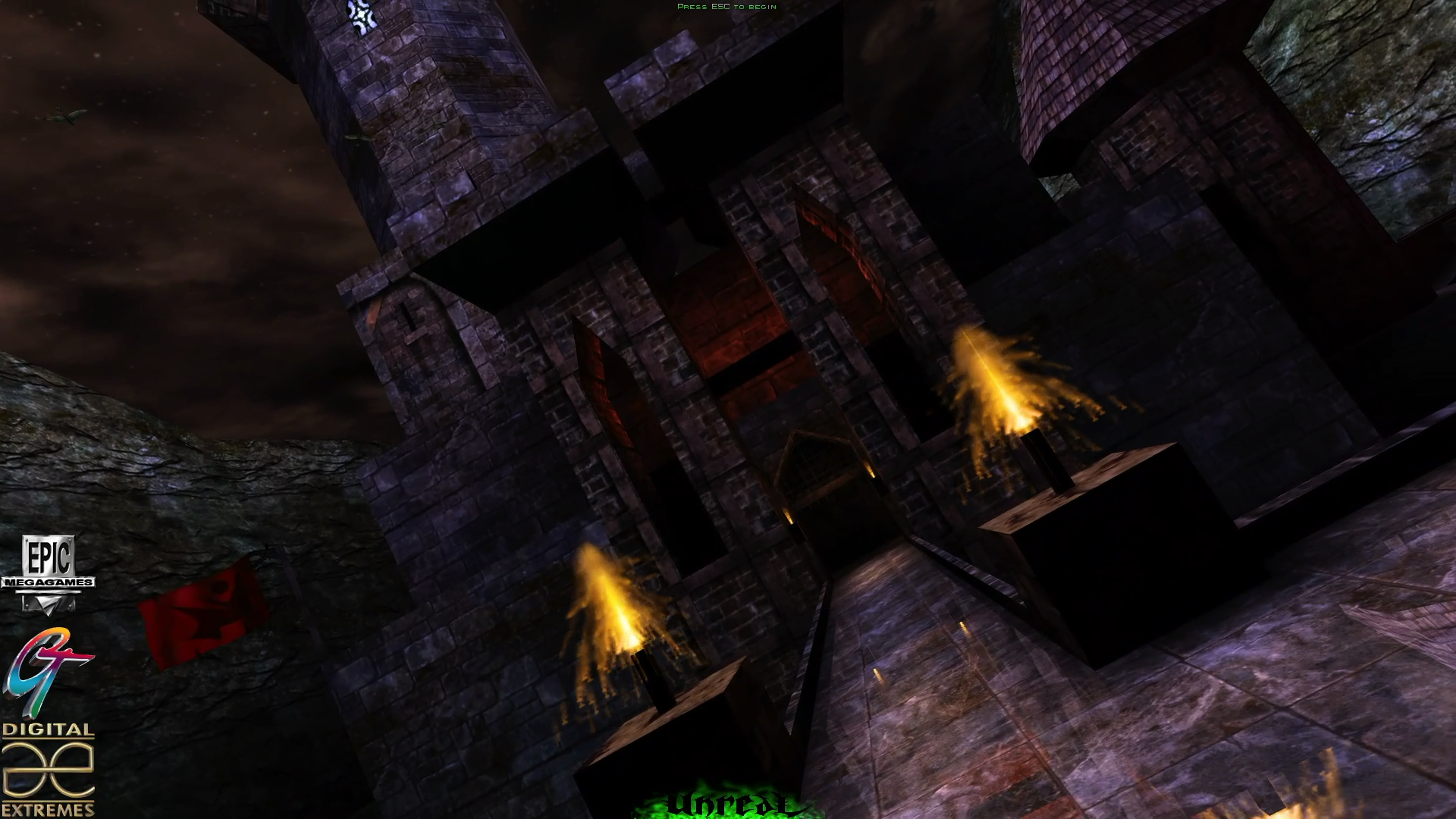
Patching Unreal Gold for modern PCs
Unreal Gold is actively maintained by the community developers at OldUnreal. They continue to release official updates to keep
the game compatible with modern versions of Windows. The current and most recent version of Unreal Gold is 227i.
If you are updating an existing installation: download the latest patch from the official OldUnreal downloads page:
https://www.oldunreal.com/downloads/unreal/oldunreal-patches/
Run the patch installer and point it to your Unreal Gold installation directory. The installer will update the game to version 227i and apply
numerous compatibility fixes, rendering improvements, engine enhancements, and online functionality updates.
After patching, launch the game to confirm everything is working correctly.
If you don't have the game: the folks over at OldUnreal offer an official installer that includes a legal copy of the game with all current patches with all other modern improvements. Find the installer here:
https://www.oldunreal.com/downloads/unreal/full-game-installers/
If you experience graphical issues or simply want better performance, you can change the renderer. Unreal supports multiple modern rendering
backends included with the 227i patch. A renderer is the component that tells the engine how to communicate with your graphics hardware. Different renderers
use different graphics APIs such as Direct3D or OpenGL. You can switch the renderer inside the game under Options → Preferences → Video → Render Device, or
manually edit Unreal.ini in the System folder. If you need detailed instructions on renderer options and configuration, see the renderer setup guide here:
(link to renderer block)
For visual improvements, several high-resolution texture replacement packs are available from the community. These packs replace the original
low-resolution textures with sharper, modernized versions while keeping the original art style intact. Installation usually involves copying texture files
into the Textures folder and enabling them in the configuration. A popular high-resolution texture pack can be found here:
HD Texture Pack
Once patched to version 227i and configured with your preferred renderer, Unreal Gold runs smoothly on modern hardware, supports high resolutions
and widescreen displays, and maintains full compatibility with multiplayer servers. Thanks to the continued work of OldUnreal, this classic remains
fully playable and actively supported today.